Chat
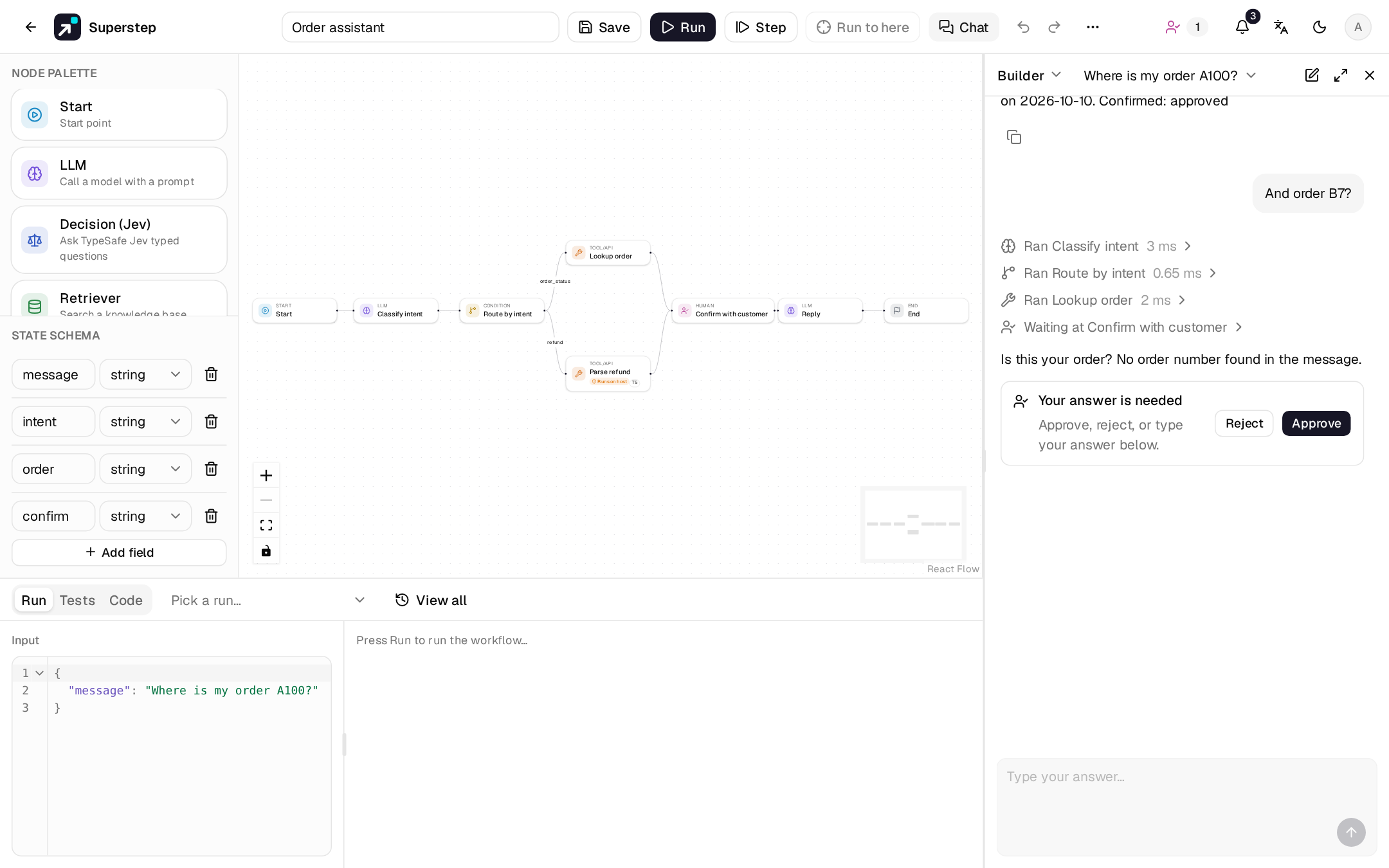
The Chat panel at the right of the editor lets you talk to a workflow the way a person chatting with it would. Each message starts a run of the saved workflow; the steps and the reply stream in as it runs, and the conversation is kept so the workflow can remember it.
Open the panel
- Chat in the top bar, or Shift+C on the canvas, opens and closes the panel. It stays open, at the width you dragged it to (340–760 px), the next time you open the editor in this browser.
- Config stays beside it, so you can change a node and try it again at once.
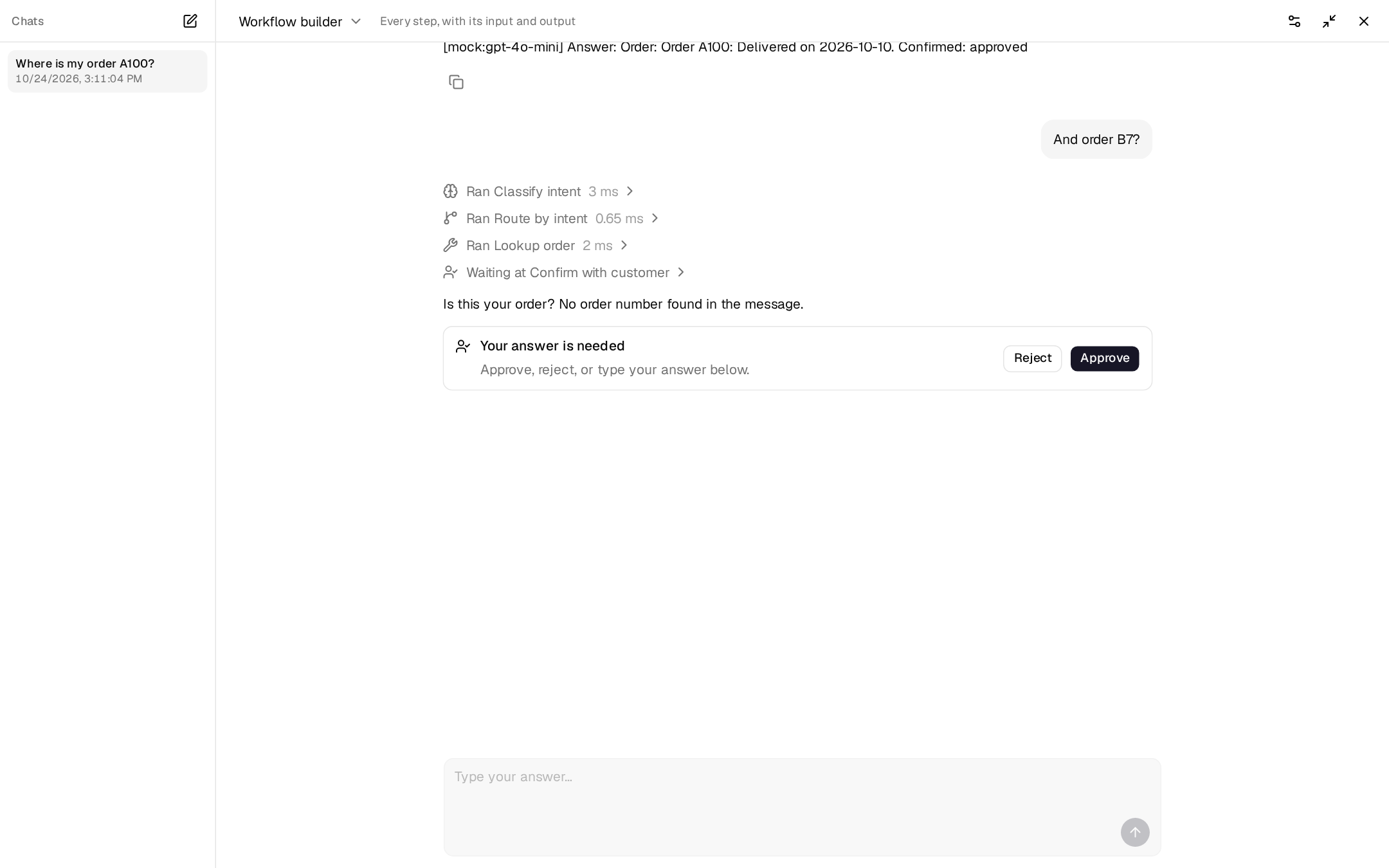
- Fullscreen (the arrows) shows the chat over the whole window, with the list of your chats on the left. Esc goes back; the conversation and what you were typing stay.
- In the narrow panel, pick an earlier chat from the session picker next to View as, or start one with the New chat button (the pen icon).
To let people outside the studio chat with the workflow, publish the chat on a page of its own, and embed it on your site if you like.
Turn chat on
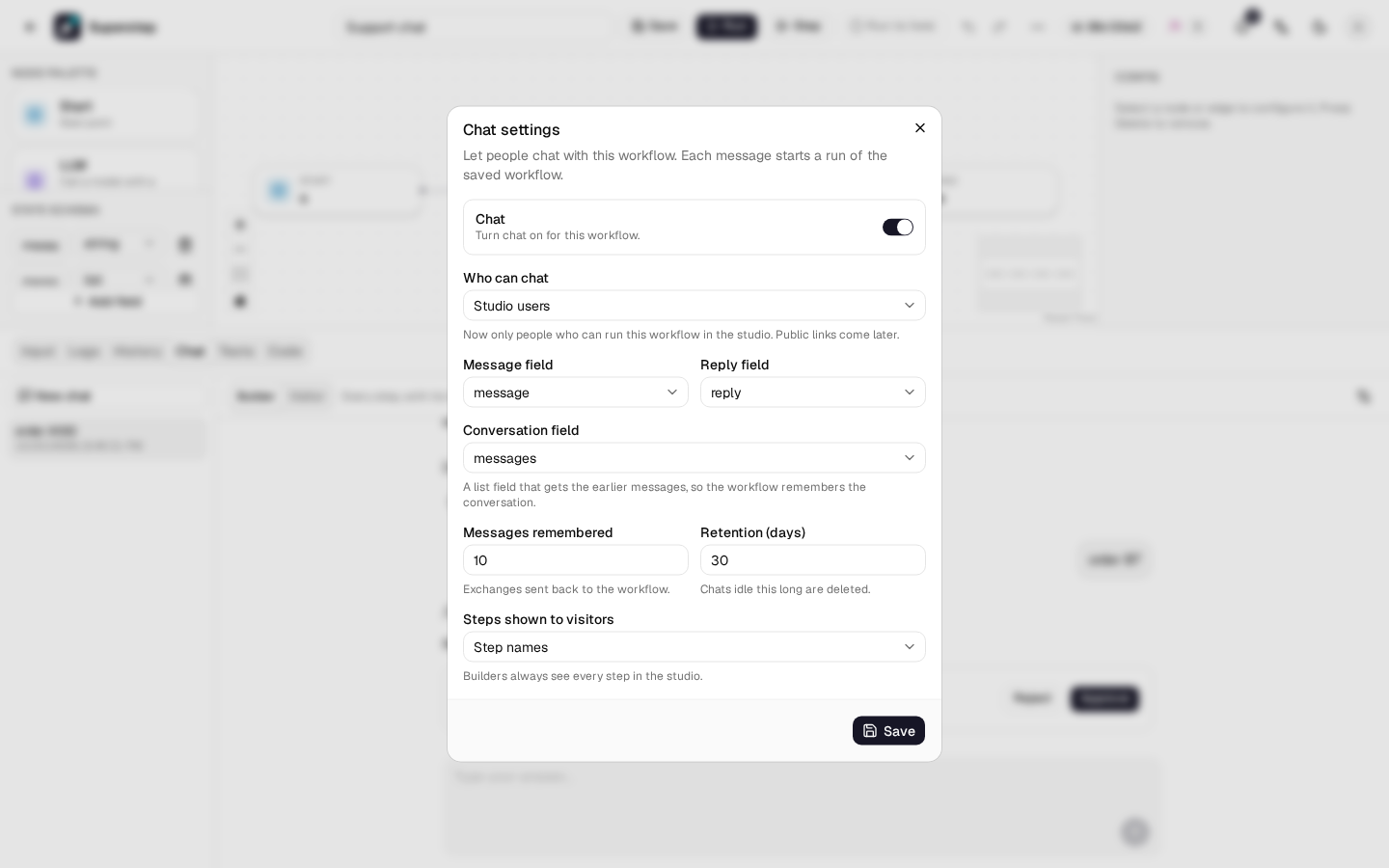
- Open the workflow and choose ⋯ → Chat settings, or the gear in the Chat panel. You need owner access to change them (its owner, or an admin).
- Turn Chat on and check the fields:
- Message field: the state field that gets each message (
stringorlist). - Reply field: the state field shown as the answer.
- Conversation field: a
listfield that gets the earlier messages (see Memory). Choose None for a chat without memory.
- Message field: the state field that gets each message (
- Save. Saving checks that the fields exist in the workflow's state.
| Setting | What it does | Default |
|---|---|---|
| Who can chat | Leave all public options unchecked for builders only. Anyone with the link, Signed-in users and Third-party app users publish the chat; several options may be selected. | Builders only |
| Messages remembered | How many earlier exchanges (one message and its answer) go to the conversation field. | 10 |
| Steps shown to visitors | None, Step names or Full (with each step's input and output). | Step names |
| Retention (days) | Chats with no new message for this long are deleted. | 30 |
Chat
Type a message and press Enter (Shift+Enter adds a line). Answers are Markdown: lists, tables, links and code blocks show formatted; raw HTML and images from other sites are not shown, and links open in a new tab.
- New chat starts a conversation without memory. Your earlier chats stay in the list, newest first, named after their first message.
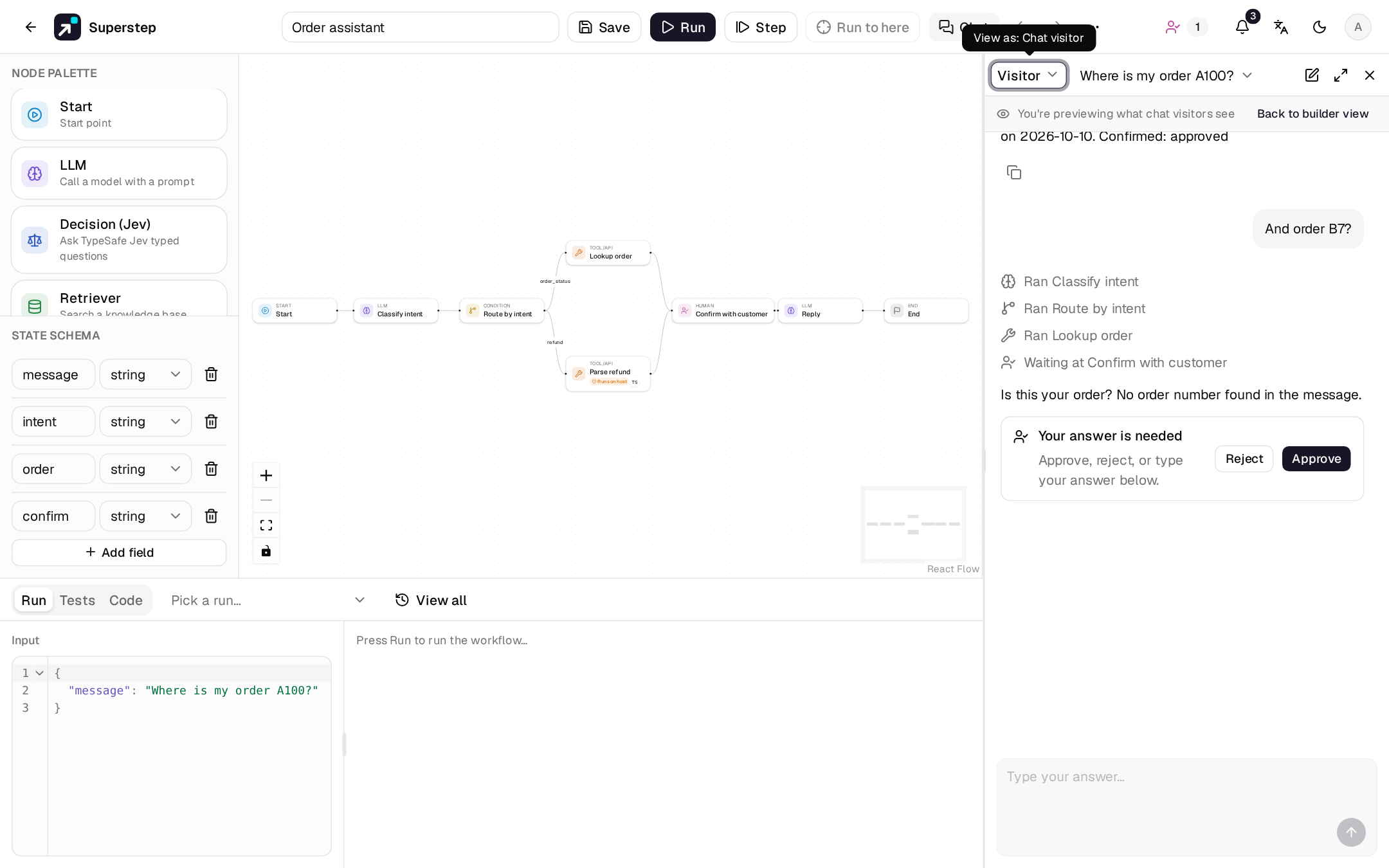
- View as at the top switches the view. Workflow builder shows every step with its full input and output (click a step to open it); Chat visitor previews exactly what visitors see on the public chat: what Steps shown to visitors allows. In a narrow panel the switch shows a short Builder or Visitor label and also holds Chat settings; while you preview as a visitor, a strip above the thread says so, with Back to builder view.
 - Each message is a run in the run history (Run → View all) with the Chat
badge, so you can open its full trace there.
- Chat uses the saved workflow: save your changes before you try them.
Attachments
Turn on Allow attachments in Chat settings to let people add files to a message, in the Chat panel, on the published page and in the widget. It is off by default.
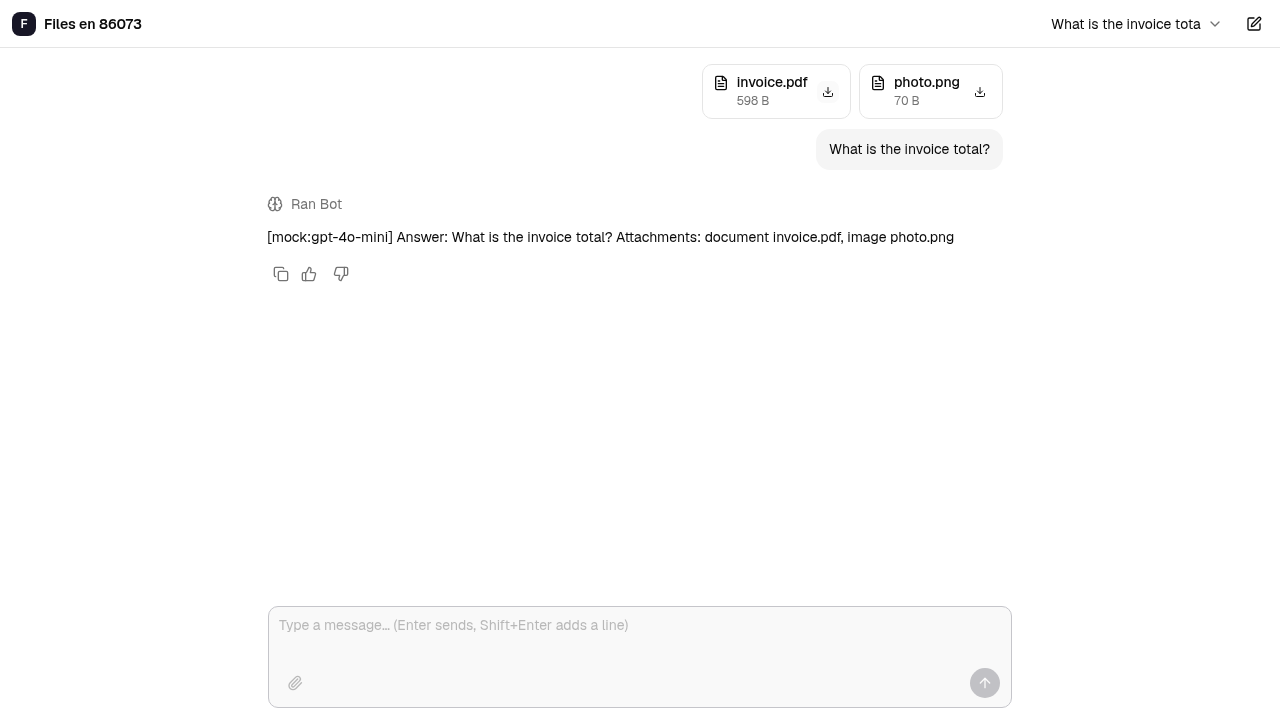
- File types: documents (PDF, TXT, MD, CSV) and images (PNG, JPEG, WebP). The server reads the type from the file's content, not from its name.
- Files per message and Max size (MB): 5 files and 10 MB by default.
They cannot go over the server's ceiling,
STUDIO_CHAT_ATTACHMENT_MAX_FILESandSTUDIO_CHAT_ATTACHMENT_MAX_MB(see Configuration). - State field: a
listfield of the workflow that receives the files of each message,filesby default. It cannot be the message or conversation field.
Use the paperclip button or drop files on the message box. Each file is checked in the page before it uploads (type, size, count), shows as a chip with its size and a thumbnail for images, and can be removed before sending. Send waits until every upload is done. A message may carry files only.
The run gets one record per file in the state field:
[{"id": "…", "name": "invoice.pdf", "type": "application/pdf", "size": 5120,
  "text": "Invoice 42 …", "text_cut": false}]
text holds the text of a document (up to 50,000 characters, text_cut says
when it was cut). The bytes never enter the run state. To give the files to a
model, turn on Include attachments on an LLM or
Agent node.
Sent messages list their files with a download button. Only the person who sent them, and builders under Visitor chats, can download them; files always download and never open in the page. Files are kept with the chat and deleted with it (retention or Delete); files that were uploaded but never sent are deleted after an hour. The public demo does not accept uploads.
By default the files are kept in the database. An operator can keep them in
a folder (STUDIO_ATTACHMENT_STORAGE=fs, STUDIO_ATTACHMENT_FS_PATH) instead,
so the database stays small. Downloads work the same way: the studio reads the
file and sends it, with the same checks. /api/health shows the storage in use
(attachment_storage) and whether writing, reading and deleting there works
(attachment_storage_ok).
With STUDIO_ATTACHMENT_STORAGE=s3 the files go to an S3-compatible bucket
(AWS S3, Cloudflare R2, Backblaze B2, MinIO). The browser never sees the
bucket: there are no bucket links, and downloads still go through the studio.
Set STUDIO_ATTACHMENT_S3_BUCKET, and for services other than AWS also
STUDIO_ATTACHMENT_S3_ENDPOINT:
| Service | Endpoint | Region | Path style |
|---|---|---|---|
| AWS S3 | (empty) | the bucket's region | false |
| Cloudflare R2 | https://<account>.r2.cloudflarestorage.com |
auto |
false |
| Backblaze B2 | https://s3.<region>.backblazeb2.com |
the bucket's region | false |
| MinIO | http://minio:9000 |
us-east-1 |
true |
The access keys never appear in logs, errors or /api/health; a failing bucket
shows a short reason such as S3 error AccessDenied. The published images
include the S3 client; a source install needs pip install
"superstep-backend[s3]".
Give attachments a folder or bucket prefix of their own. The studio deletes
leftover files there that no chat refers to, but only files whose names it
made itself (<workflow>/<chat>/<file id>), so other files are never touched.
A folder that is, or contains, the studio's data folder (the database, the
secret key, imports) is refused: /api/health shows
attachment_storage_ok: false and uploads fail; use a subfolder such as
/data/attachments. An empty STUDIO_ATTACHMENT_S3_PREFIX on a bucket shared
with anything else logs a warning; set a prefix such as superstep/.
Each file remembers the folder or bucket and prefix it was written to, so
changing STUDIO_ATTACHMENT_FS_PATH, the bucket or the prefix later does not
lose older files: they are still read from where they are, and
superstep attachments migrate --to fs (or --to s3) moves them to the new
place. Files in a bucket stay readable after switching to another backend and
removing STUDIO_ATTACHMENT_S3_BUCKET, as long as the S3 credentials (and
endpoint) are still set; without them, reading fails with "no S3 credentials".
Memory
With a conversation field set, each run gets the last n exchanges plus the
new message in that field, as a list of {"role": "user" | "assistant",
"content": "…"} items. Use it in a prompt, for example:
An Agent node with this field as its History field and the message in
its task prompt ({{state.message}}) sends the new message once: as the task prompt, not also as
the last history item.
Human nodes in a chat
A Human node's Answered by option decides who answers it when the workflow runs from a chat:
- The person chatting (default): the question appears in the chat with
Approve and Reject; or type your answer in the message box. The answer goes to the node's
output field and the run goes on. Your answer stays in the chat as your message (a form answer as
one
field: valueline per field), and the later turns remember it together with the question it answered, in the same exchange. - A reviewer: the chat says it is waiting for approval, and the question goes to the Approvals page (and its channels) as usual. The chat shows the answer once the run goes on.
An Agent node's tool approvals are always a reviewer's: the person chatting does not approve the agent's own actions.
A new message cannot be sent while the chat waits for an answer, or while a reply is still on its way: the send button stays a stop button until the reply is saved. The node's deadline applies in both cases; when it passes, its timeout action decides what happens.
Publish a chat
Under Who can chat, enable Anyone with the link, Signed-in users,
or Third-party app users, and keep Chat on. You can select several
options. The chat now has a page of its own at /c/<address>, where people
who never open the studio can talk to the workflow.
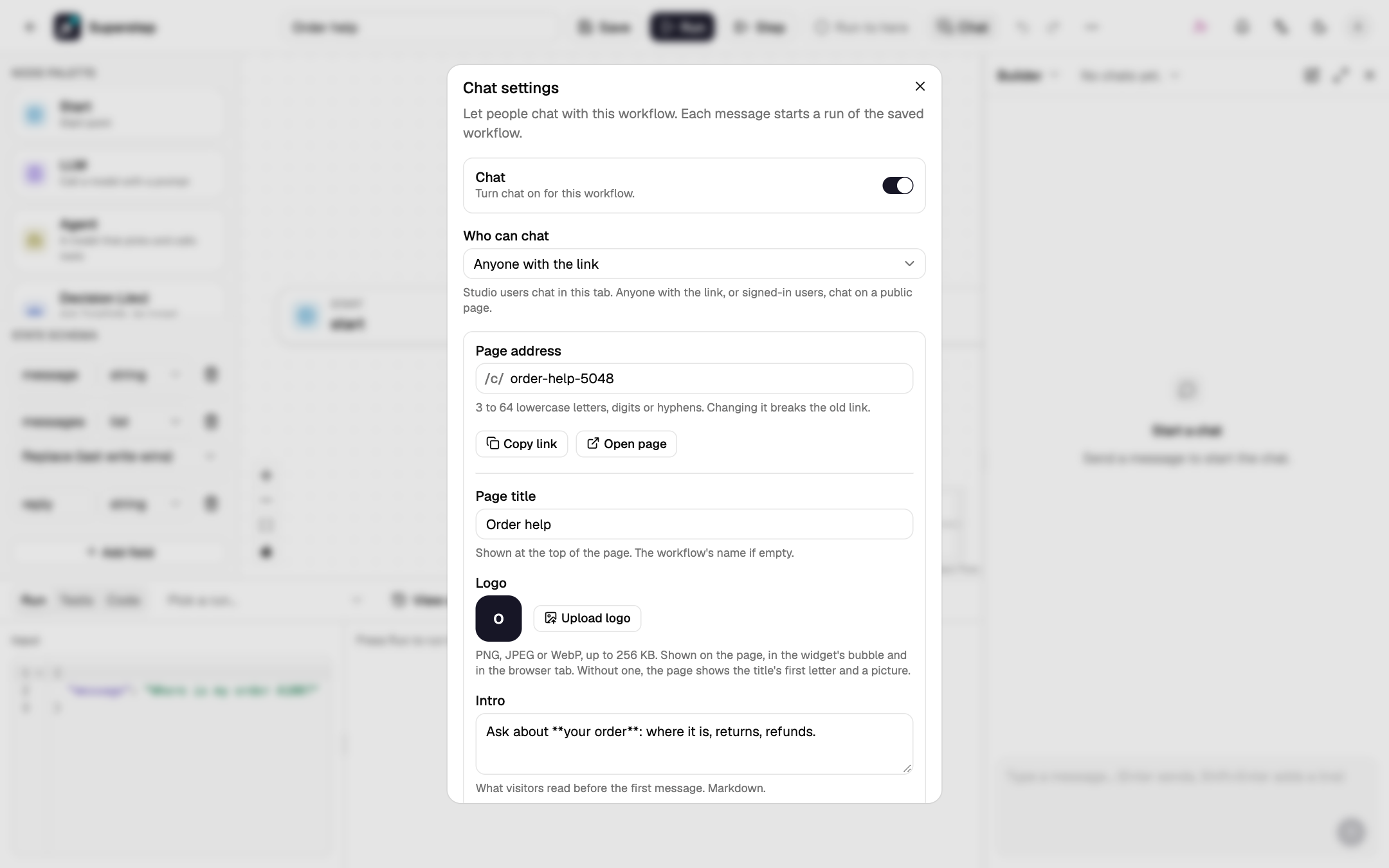
| Setting | What it does | Default |
|---|---|---|
| Page address | The <address> in /c/<address>: 3 to 64 lowercase letters, digits or hyphens, not used by another chat. Changing it breaks the old link. |
the workflow's id |
| Page title | Shown at the top of the page. | the workflow's name |
| Logo | A PNG, JPEG or WebP image of up to 256 KB. Upload logo picks it; Save stores it. It shows at the top of the page, over the intro and in the browser tab. | the title's first letter, and a picture over the intro |
| Intro | What visitors read before their first message. Markdown. | empty |
| Suggested messages | Up to 4 buttons a visitor can click to start. | none |
| Messages per day | Visitor messages per day (UTC) for this chat, so a busy or abused page cannot run up your model bill. 0 means no cap. |
500 |
Copy link and Open page appear once the chat is published.
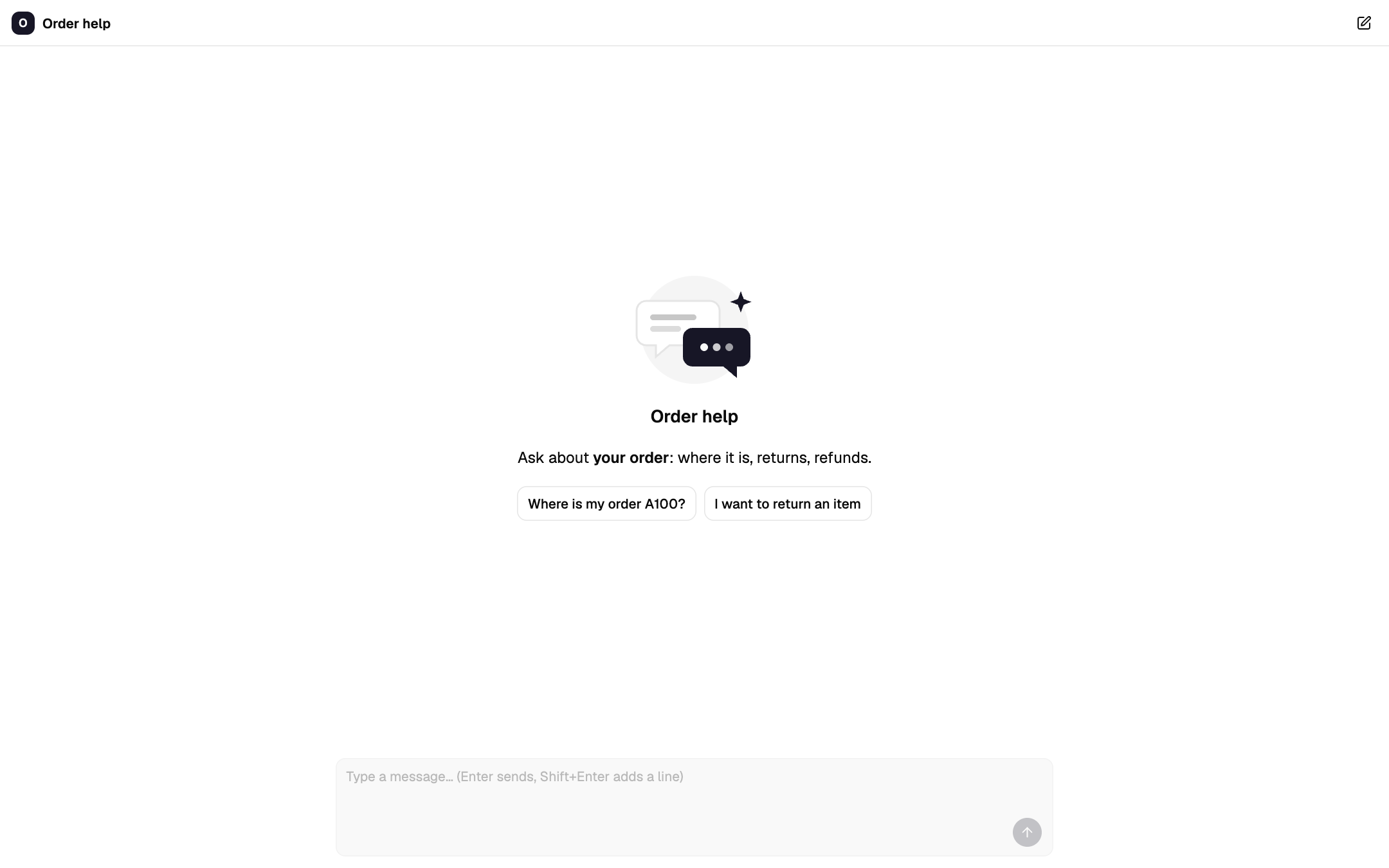
On the page:
- Anyone with the link: a visitor needs no account. The browser keeps a private cookie for this chat, so the visitor finds their earlier chats when they come back, and nobody else can read them.
- Signed-in users: any account of this studio can chat, also one that may not open the workflow. A visitor who is not signed in goes to the sign-in page and comes back to the chat.
- Third-party app users: your application's backend signs short-lived user tokens using a per-chat app key. Integrate with the direct Chat API and auth guide; the built-in page/widget does not yet have a token identify bridge.
- Each message runs the saved workflow as its owner: with the owner's credentials, knowledge bases and MCP servers, as Slack and Telegram chats do. The runs are in the workflow's History.
- The page shows what Steps shown to visitors allows. It never shows the workflow, its state or who owns it.
- Human nodes work as in the panel: the visitor answers questions for The person chatting, and waits for a reviewer otherwise.
- The page follows the visitor's language (English or Vietnamese) and light or dark setting.
Limits. Besides the chat's messages per day, the server limits each visitor
and each IP address (10 and 30 messages a minute by default). A visitor over a
limit is told when to try again, and no run starts. Operators change the limits
with the STUDIO_PUBLIC_CHAT_RATE_* settings (see
Configuration). The public demo publishes no
chats.
To take the page down, uncheck all public access options (builders only), or turn Chat off. The page then says the chat is not available.
Visitor chats
Open ⋯ → Chat history & feedback → Visitors to review published-page chats outside the Chat panel. It shows each visitor's chat read-only, with every step, until Retention deletes it. It shows no names or visitor ids. Visitors are not told that chats are kept, so say so in the intro if it matters.
Under each finished answer, the visitor can mark it helpful or not. A "not helpful" mark can include a short note about what went wrong. They can change the mark or remove it. The same controls are on the embedded chat, because that is this page.
In Chat history & feedback the builder sees the mark and note on each answer.
With dislikes keeps only visitor chats with a negative rating. Summary cards
show helpful/not-helpful counts and the negative share for this workflow over
the last 7 and 30 days. The Chats tab lists your own Studio conversations;
use the Chat panel to continue them. Save as test
case on a rated answer opens a draft test of that run. When LangSmith
tracing is on, the mark is also sent to that run's trace as feedback named
user_rating.
Embed the chat on your site
A chat open to Anyone with the link can also appear on another site.
- Add the site under Sites that may embed this chat, one per line, like
https://www.example.com(http://localhost:<port>also works, for testing). Other sites cannot show the page in a frame. - Copy one of the two snippets that appear:
- Chat bubble: paste it before
</body>. A round button in the corner opens the chat. Visitors keep their chats on that site in every browser. - Frame: shows the chat inside the page, where you put it. Some browsers (Safari) clear what a frame stores, so a visitor may start afresh on each visit; use the bubble to keep chats.
- Chat bubble: paste it before
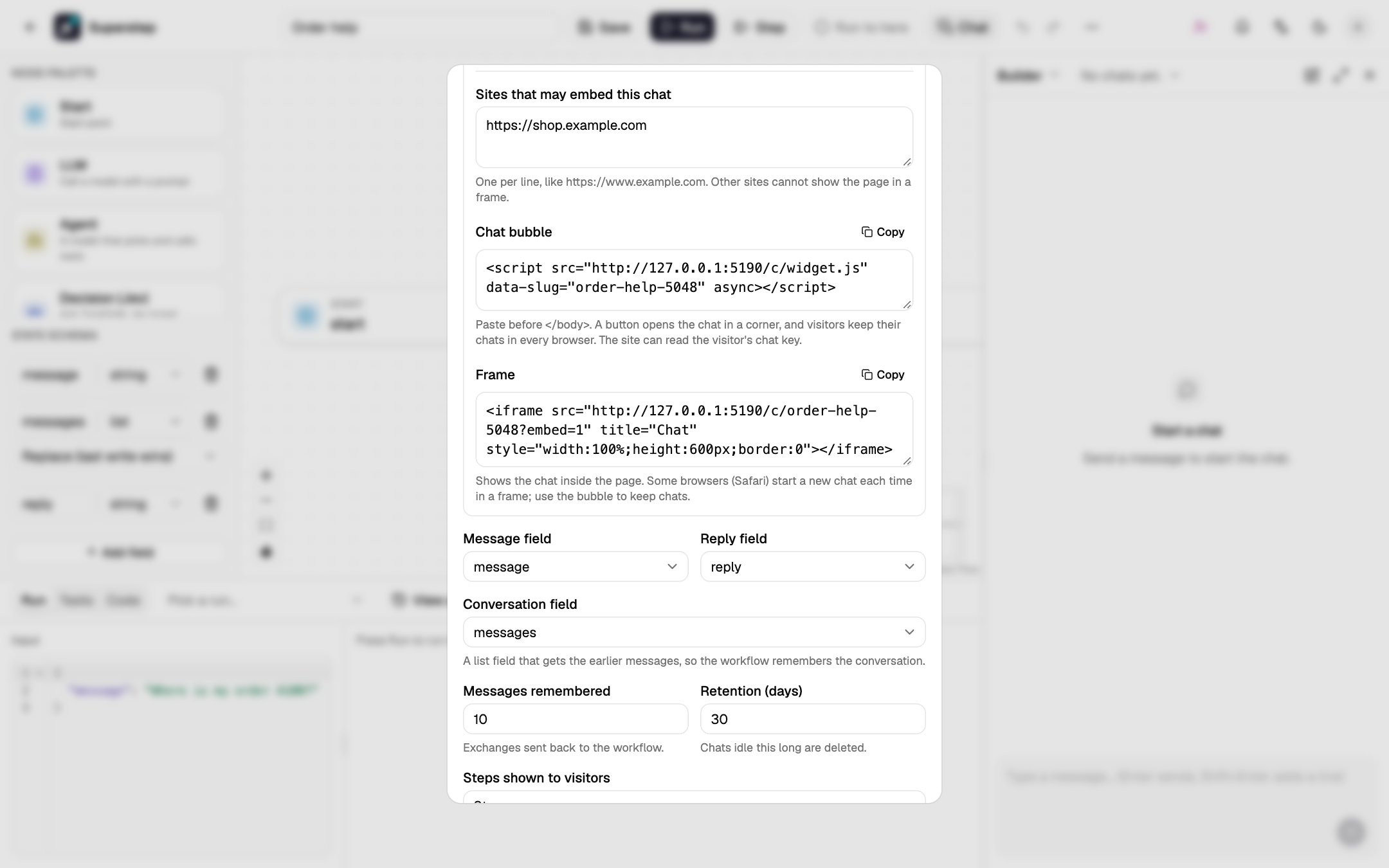
The bubble takes data-position="left" to sit on the left, and
data-open="true" to start open. It keeps the visitor's chat key in the site's
own storage, so scripts on that site can read it and open that visitor's chats:
embed the bubble only on sites you trust with them.
The rest of the studio cannot be shown in a frame on any site.
Errors
| Code | Meaning |
|---|---|
CHAT_NOT_ENABLED |
Chat is off for this workflow. |
CHAT_SETTINGS_INVALID |
A setting is wrong; field names it. |
CHAT_SESSION_NOT_FOUND |
The chat does not exist, or is not yours. |
CHAT_MESSAGE_EMPTY / CHAT_MESSAGE_TOO_LONG |
The message is empty, or over 4000 characters. |
CHAT_RUN_WAITING |
The chat waits for a Human node's answer. |
CHAT_ANSWER_BY_REVIEWER |
A reviewer answers this step, in Approvals. |
CHAT_NOT_PUBLISHED |
The public page is off, or its address changed. |
CHAT_SLUG_INVALID / CHAT_SLUG_TAKEN |
The page address has the wrong form, or another chat uses it. |
CHAT_SIGN_IN_REQUIRED |
The chat is for signed-in users. |
CHAT_DAILY_LIMIT |
The chat has used its messages for today. |
CHAT_EMBED_ORIGIN_INVALID |
An embed site is not an address like https://example.com. |
CHAT_LOGO_INVALID |
The logo is not a PNG, JPEG or WebP image, or it is over 256 KB. SVG is not accepted. |
CHAT_ATTACHMENTS_OFF |
This chat does not accept attachments. |
CHAT_ATTACHMENT_TYPE |
The file type is not allowed in this chat, or its content does not match a PDF, image or UTF-8 text. |
CHAT_ATTACHMENT_TOO_LARGE |
The file is over the chat's size limit. |
CHAT_ATTACHMENT_TOO_MANY |
The message has more files than the chat allows. |
CHAT_ATTACHMENT_NOT_FOUND |
The file does not exist, or is not yours. |
CHAT_ATTACHMENT_LIMIT |
A limit in Chat settings is over the server's ceiling. |
CHAT_ATTACHMENT_DEMO |
The public demo does not accept uploads. |
RATE_LIMITED |
Too many messages from this visitor or address; retry_after says when to try again. |
See also Chat triggers for Slack and Telegram.
For your own users and custom appearance, see React toolkit and Widget API.
Edit a sent message
On servers advertising capabilities.edit in the session view, use Edit message on a saved root user message. Human answers are not editable messages. Save opens a new conversation branch with the preceding history and the edited message; the original conversation and its later messages remain intact. Use Original conversation to return. Inherited turns are read-only and cannot create duplicate feedback. Files are copied to independent IDs/storage objects so either conversation can be removed without breaking the other.
The confirmation explains that this starts the currently saved/published workflow again: API calls, writes and notifications may repeat. It does not undo earlier actions or regenerate only a model's text. Human and reviewer approvals must be provided again. Wait for running/waiting conversations to finish before editing; refresh a stale conversation. Cancelling the edit changes nothing.
Editing and regeneration require Superstep 0.11.0 or newer. Use compatible SDK/UI versions together with the server; native packages remain deferred.
Regenerate the latest answer
Use Regenerate answer on the latest completed answer, including a failed, cancelled or timed-out attempt. Confirm Run again in new branch to rerun the message that produced it. The new conversation keeps the prefix before that message and independently copies its files; the original answer and its feedback remain unchanged. Use Original conversation to return.
This runs the currently saved/published workflow from the start, so API calls, writes and notifications may repeat. Earlier Human responses and reviewer approvals from that attempt are not replayed: answer/approve the new requests again. Running or waiting conversations cannot regenerate. Cancel closes the confirmation without creating a branch. Requires capabilities.regenerate; inherited answers are read-only.