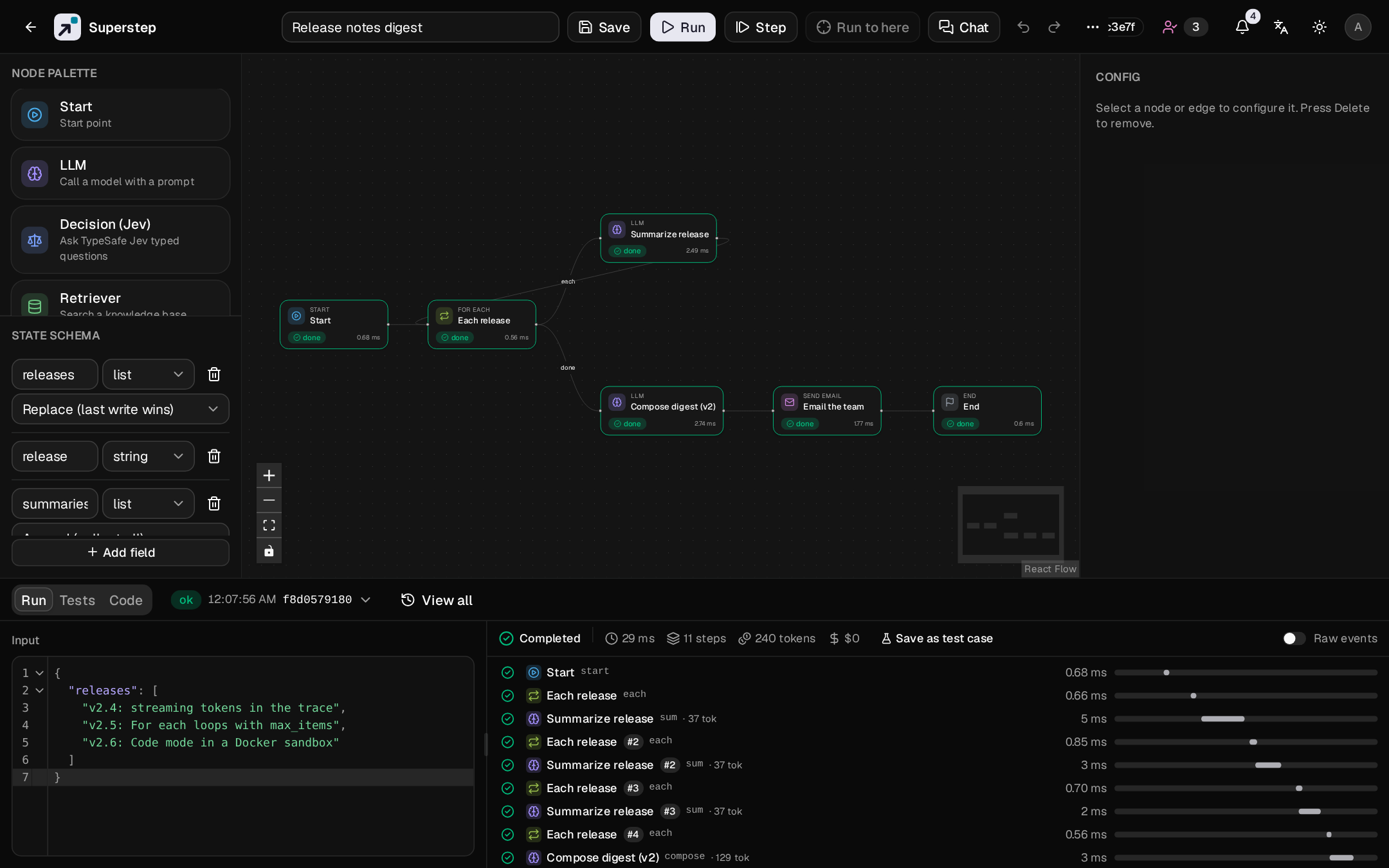
The editor
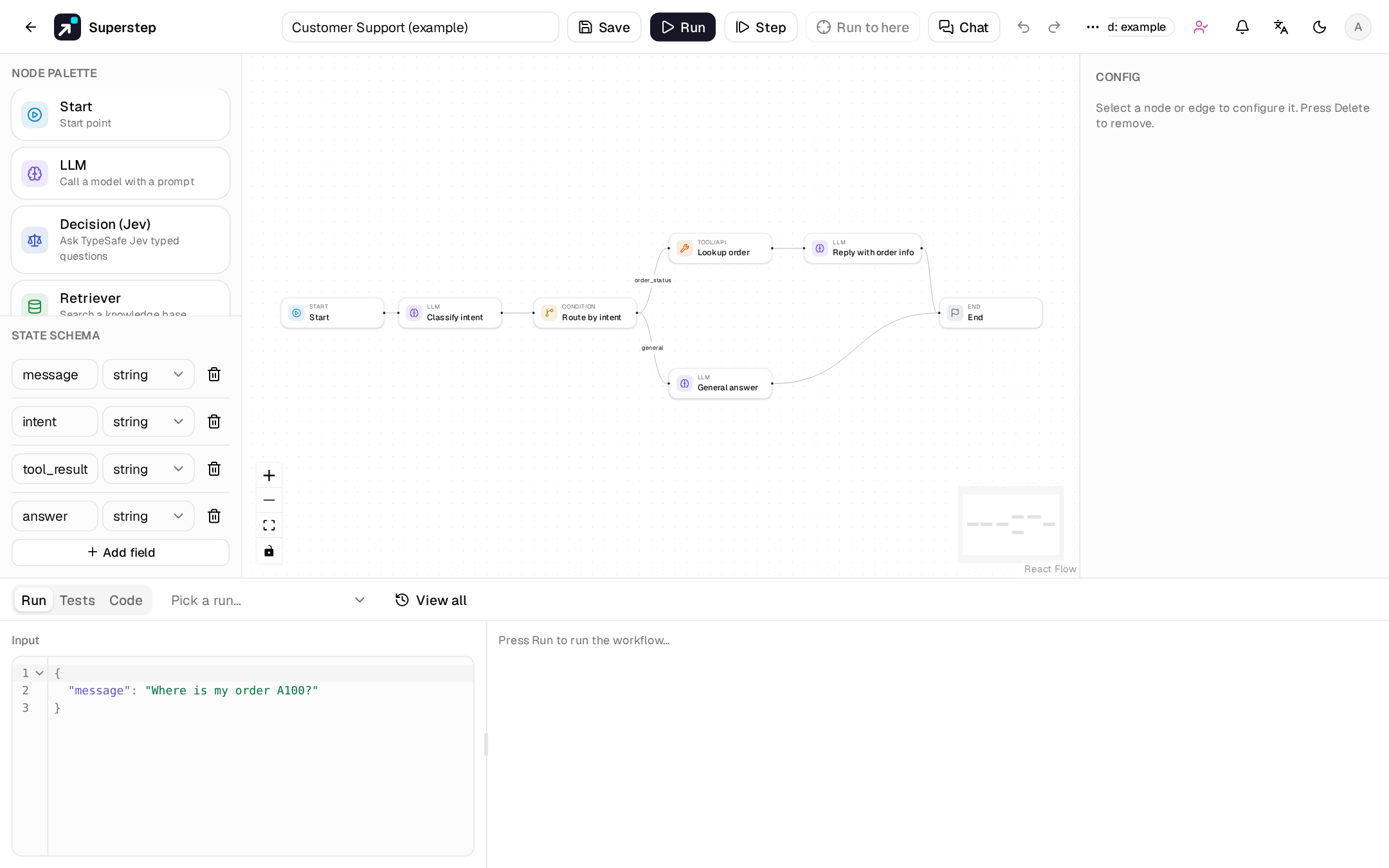
Layout
| Area | What it holds |
|---|---|
| Top bar | Name, Save, Run, Step, Run to here, Chat, undo and redo. Everything else is in the ⋯ (More actions) menu: layout, versions, schedules, API, share, save as template, workflow JSON, view as code, transfer, delete. |
| Left | Node palette and the State schema editor. |
| Centre | The React Flow canvas. |
| Right | Config for the selected node or edge. |
| Bottom | Three tabs. Run: the input (JSON) and the logs (the live trace) side by side, a picker with the last 10 runs and View all for the whole run history. Tests. Code (the workflow as LangGraph Python or TypeScript). |
| Far right | The Chat panel, when it is open. |
Drag the border of the left, right or bottom panel to resize it. The
minimums are 180 px, 260 px and 140 px, and the canvas keeps at least
280 × 160 px. Sizes are stored in this browser (localStorage.lgs.editorPanels),
not in the workflow. The border between the input and the logs drags too.
On a narrow screen (less than 1100 px left for the editor once the chat panel is open) Config folds away while nothing is selected and comes back when you select a node or an edge.
Editing the canvas
- Add a node: drag it from the palette onto the canvas, or press Ctrl+K and type Add ….
- Connect: drag from a node's right handle to another node's left handle.
- Edge label: select the edge and type the label in the right panel. Labels matter on Condition and For each edges.
- Delete: Del or Backspace removes the selection. Start and End cannot be deleted.
- Note: right-click the canvas and choose Add note for a sticky note. It is saved with the workflow, layout leaves it in place, and a run ignores it.
Undo and the clipboard
Ctrl+Z undoes and Ctrl+Shift+Z or Ctrl+Y redoes, up to 100 steps. One drag is one step, and continuous typing in the same node is one step. Text fields keep the browser's own undo. The Unsaved changes badge clears when you undo back to the saved graph.
Ctrl+C, Ctrl+X, Ctrl+V and Ctrl+D copy, cut, paste and duplicate
nodes. Only edges between selected nodes travel with them, and pasted nodes
get new ids. Start and End are never copied. The clipboard lives in
localStorage (superstep/nodes v1), so you can paste into another
workflow in the same browser. A credential you cannot use is cleared on paste.
Layout
Tidy up in the ⋯ menu, or Shift+L, lays the graph out with dagre at the real node sizes. The arrow beside it switches between left-to-right and top-to-bottom. The top-left of the graph stays where it was, and one layout is one undo step. Shift+1 fits the graph in the view.
Command palette
Ctrl+K opens the command palette on every page, including from inside a
text field. It fuzzy-finds editor actions, Add node, Jump to node,
Open workflow, New workflow and Settings pages. English keywords such
as retriever or mcp match in both languages.
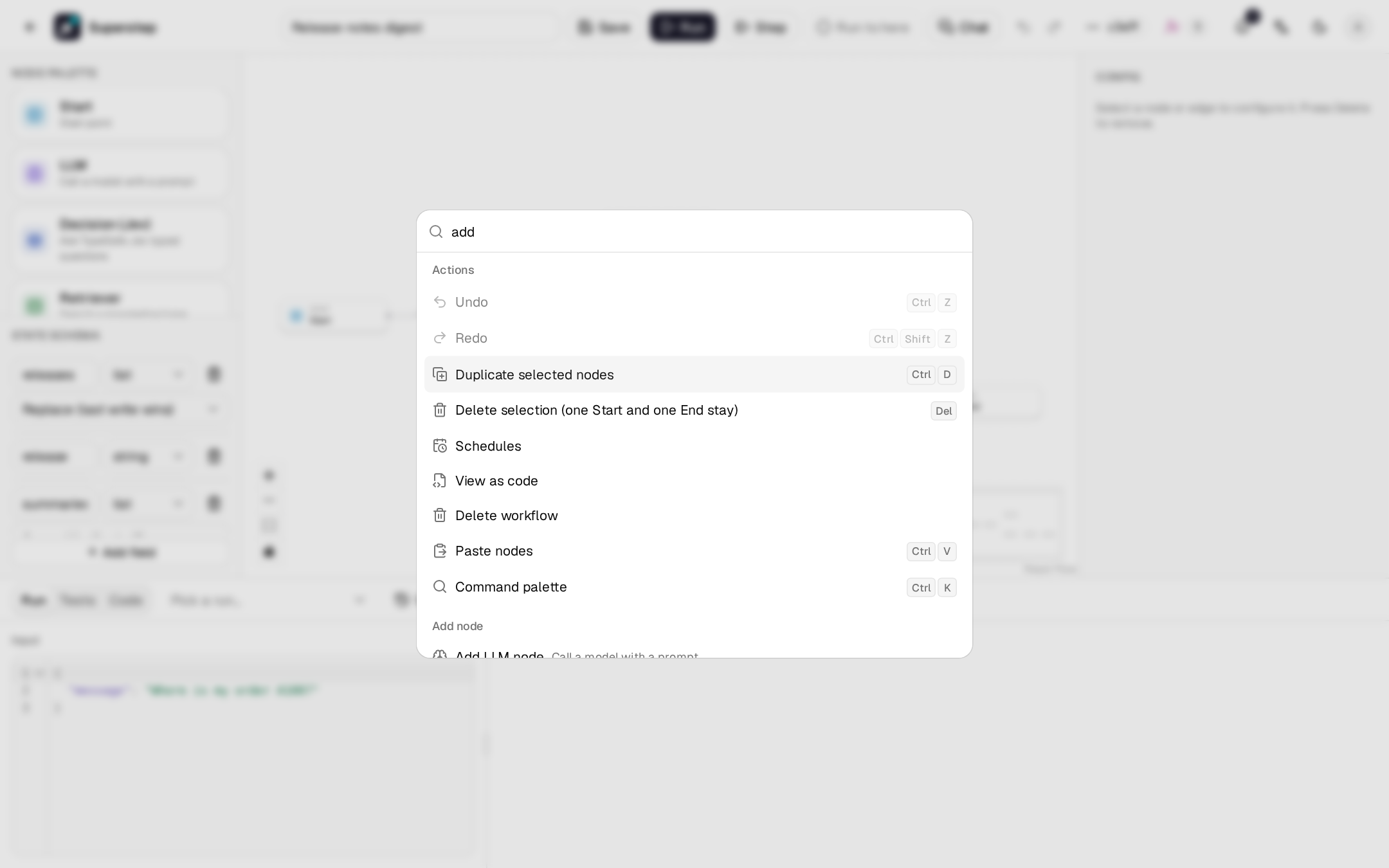
? or Ctrl+/ opens the shortcut sheet. The full list is in Keyboard shortcuts.
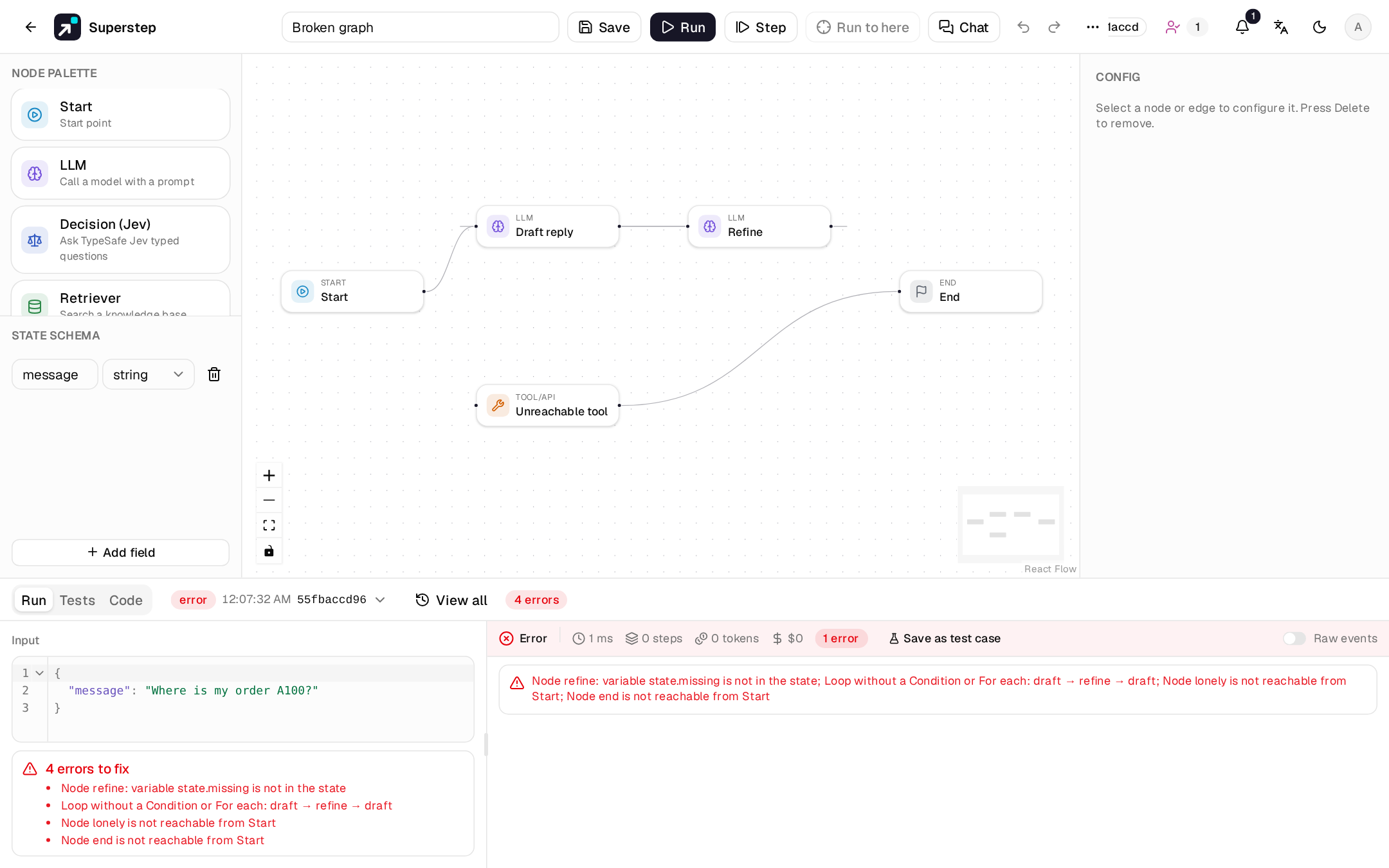
Validation
Save and Run both validate the graph. The validator rejects:
- edges to missing nodes, duplicate ids, and more than one Start;
- a self-edge (except on a Condition);
- a cycle that does not pass through a Condition or a For each;
- unreachable nodes;
- a state field written by parallel branches without a reducer;
- a
{{state.x}}reference to a field that does not exist, or an unknown filter.
Problems appear under the input in the Run tab.
Theme and language
The moon and sun button stores the theme in localStorage; ?theme=dark
forces dark mode. The language button stores the choice in
localStorage.lang; the default follows the browser. API errors are
translated by their error.code.